The moment I finally “got” Pinterest
I’ll be honest — I signed up for Pinterest three times before it actually clicked. The first two times I made an account, poked around for ten minutes, got confused about what I was even supposed to do, and closed the tab. It didn’t feel like Instagram. It wasn’t Twitter. What was I even looking at?
Then one evening I was trying to plan a bedroom makeover on a budget, and a friend said, “just Pinterest it.” I did. Within 20 minutes I had 40 ideas organized by color scheme, a rough materials list forming in my head, and a board called “Room Refresh 2024.” I finally got it.
Pinterest isn’t a social network in the traditional sense. You’re not following people’s lives. You’re building a visual library of things you want to do, make, go to, or become. It’s a search engine disguised as a mood board — and once that clicks, it becomes weirdly addictive.
So what actually is Pinterest?
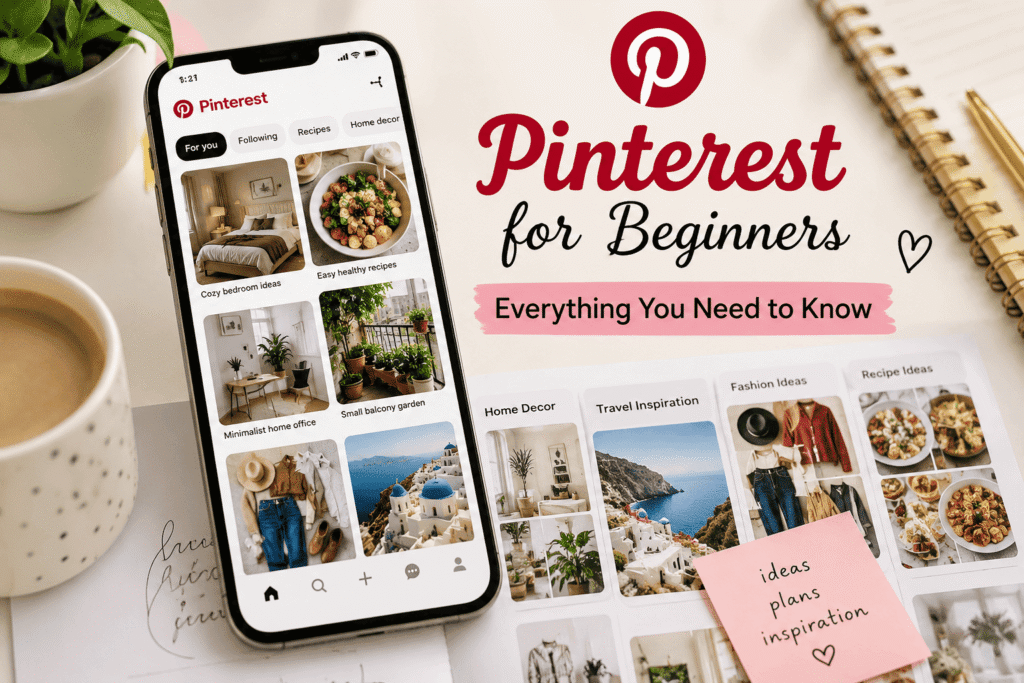
Pinterest is a visual discovery platform where you save images (called Pins) to organized collections (called Boards). Every Pin links back to a source — a recipe blog, a furniture store, a tutorial, a clothing brand — so it doubles as a bookmarking tool.
Unlike Instagram, which is about what’s happening now, Pinterest is about what you’re planning, dreaming about, or trying to learn. The content has a much longer shelf life. A recipe pinned in 2019 can still get hundreds of saves today.
Key insight
Pinterest users are mostly in planning mode — they’re looking for ideas before they buy, travel, cook, or build. That’s what makes it so useful (and what makes it so powerful for businesses, too).
The home feed shows you Pins based on your interests, search history, and what you’ve saved before. The more you use it, the scarily accurate it gets. Within a week of consistently saving travel content, my feed looked like it was curated by someone who knew me better than I know myself.
Setting up your profile the right way
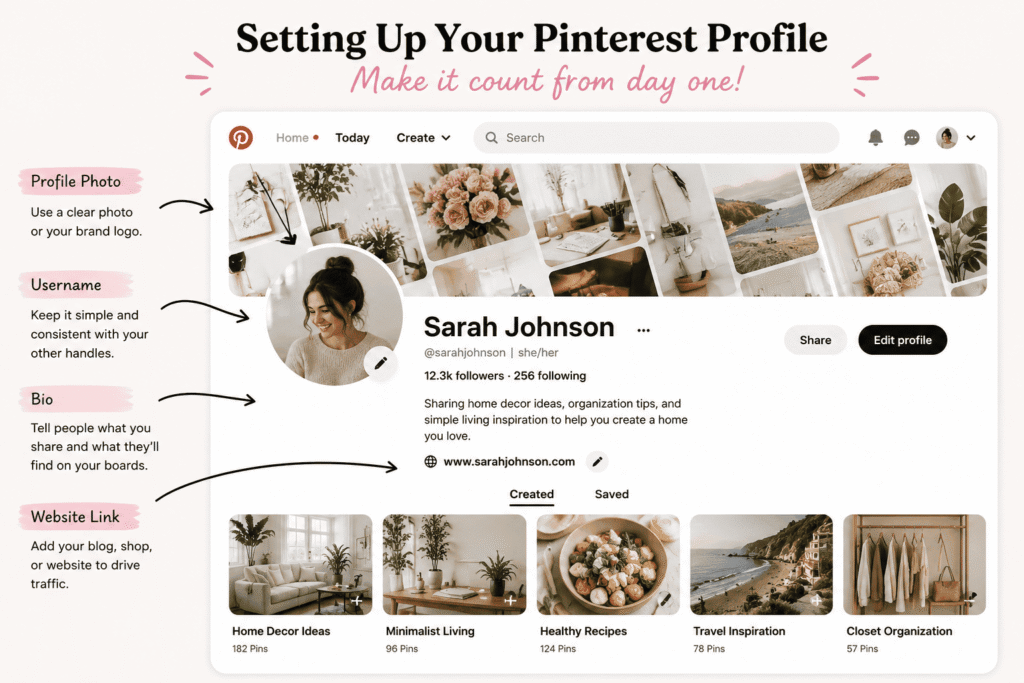
Most beginners skip the profile setup and go straight to browsing. Don’t do that — it makes the algorithm’s early suggestions terrible, and you end up with a janky feed full of random stuff.
- Choose a clear username. If you’re a regular user, your name is fine. If you ever plan to use it for a brand or blog, make it match your other handles — consistency matters for discoverability.
- Select your interests during onboarding. Pinterest asks you to pick topics when you first sign up. Pick at least 5–10 that genuinely apply to you. This seeds your initial feed.
- Add a real profile photo and bio. Especially if you’re using it for any business or creative purpose. Even personally, a filled-out profile gets better recommendations.
- Switch to a Business account if relevant. It’s free, unlocks analytics, and lets you add a website link. If you have a blog, shop, or creative project — do this from day one.
- Install the Pinterest browser extension. The “Save” button extension for Chrome or Firefox lets you pin anything from any website in one click. It’s genuinely one of the most useful browser extensions I have.
Boards and Pins — the basics
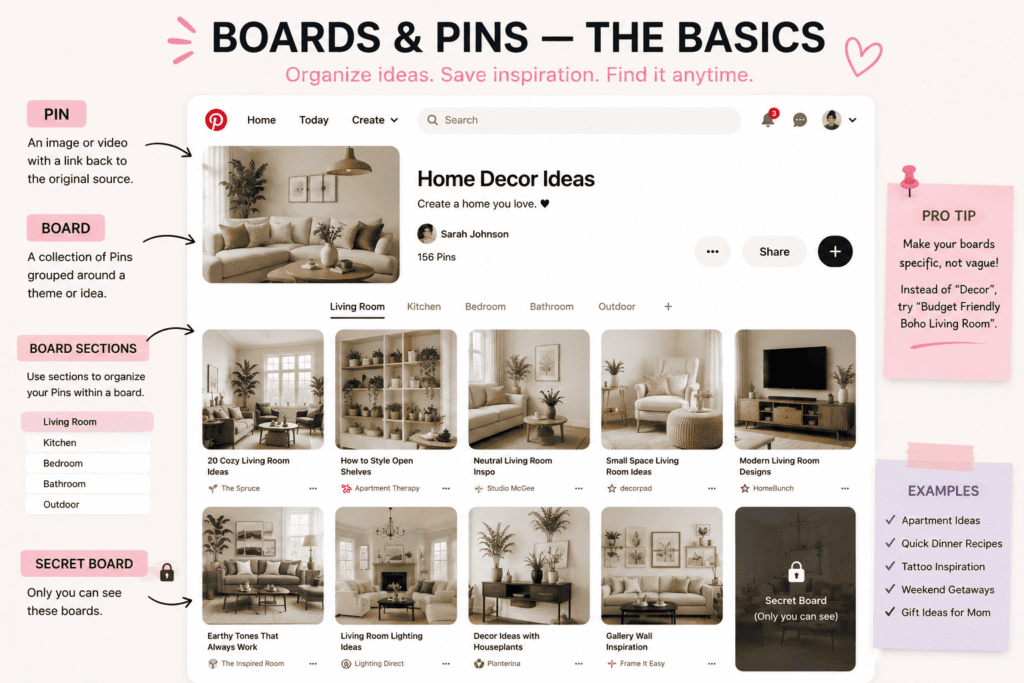
A Pin is any image (or video) you save to Pinterest. It can come from searching on Pinterest itself, or you can create your own Pin by uploading an image and adding a link. Every Pin can include a title, description, and destination URL.
A Board is a collection of Pins grouped around a theme. Think of it like a folder — or more accurately, a Pinterest-specific version of a mood board or scrapbook. You can have a Board called “Apartment Ideas,” another called “Healthy Dinner Recipes,” another called “Tattoo Inspiration.”
Pro tip
Make your Boards specific, not vague. “Food” is useless. “Quick weeknight dinners under 30 minutes” is a Board you’ll actually return to and fill up intentionally.
You can also create Secret Boards — only you can see them. I use these for things like gift ideas for family members, or private project planning where I’m not ready to share yet. Very underrated feature.
Board Sections let you divide a single board into sub-categories. So your “Home Decor” board might have sections for Living Room, Kitchen, Bathroom. Keeps things tidy without multiplying your board count.
How the Pinterest algorithm actually works
Pinterest’s algorithm is based on a few signals: what you search for, what you save, how long you look at a Pin, and what’s “close” to content you already like. It’s a recommendation engine — similar to YouTube’s “Up Next” logic but for visual ideas.
Here’s what I noticed after using it consistently for a few months:
- The more specific your saves, the more specific your recommendations. If you pin broadly (“home decor”) you get broadly generic content. Pin “mid-century modern home office with dark wood” and the feed gets sharp fast.
- Pinterest heavily favors fresh content. New Pins — especially with good vertical images, clear titles, and links — get more initial distribution. This matters if you’re creating content.
- Your search history stays sticky. Even a single search for something specific can influence your feed for days. So if you search “wedding cakes” as a joke, expect to see them for a while.
- The platform pushes Idea Pins (multi-slide content, similar to Instagram Stories) aggressively right now. They get strong organic reach — worth knowing if you’re a creator.
Tips that actually helped me use it better
Use the search bar like Google
Most beginners just scroll the home feed. The real value is in searching specific things. “small balcony garden ideas” returns way more useful content than passive browsing.
Use filters after searching
After a search, you can filter by Pins, Boards, or People — and use guided search chips at the top to narrow down. These chips are genuinely useful for drilling into a niche.
Try the visual search (camera icon)
Tap the camera icon in the search bar and point it at anything — a piece of furniture, an outfit, a plant. Pinterest will find visually similar items. Surprisingly accurate.
Pin with purpose, not just quantity
Saving 500 pins in one sitting feels productive but actually tanks feed quality. Save things you genuinely want to come back to — quality over speed.
Collaborate on group boards
You can invite others to contribute to a board — great for planning trips with friends, or collaborative projects. Both of you pin to the same collection.
The mobile app is better than desktop
The Pinterest mobile app — available on iOS and Android — has a more intuitive layout for saving on the go. Definitely use it if you’re browsing casually.
Mistakes beginners almost always make
Making boards that are too broad. “Travel” as a board title means you’ll pin everything from Tokyo to Tuscany with no way to find anything later. Break it down: “Japan Trip Inspo,” “Weekend Trips from London,” etc.
Not clicking through to the source. Pinterest shows you a preview, but the real recipe, tutorial, or product is on the linked website. A lot of beginners just save the image and never actually visit the source — missing the whole point.
Ignoring the description field when pinning. If you’re saving your own content or creating original Pins, a blank description is a missed opportunity. The text helps both the algorithm and other users find your Pin in search.
Expecting social validation. Pinterest isn’t Twitter. You won’t get quick likes and comments that tell you how you’re doing. The feedback loop is slower — repins and traffic come weeks or months later. Don’t quit early.
Pinning without a plan. If you open Pinterest with no intention, you’ll spend 45 minutes scrolling and save 80 random things. Decide what you’re looking for before you open the app.
Using Pinterest for business or blogging
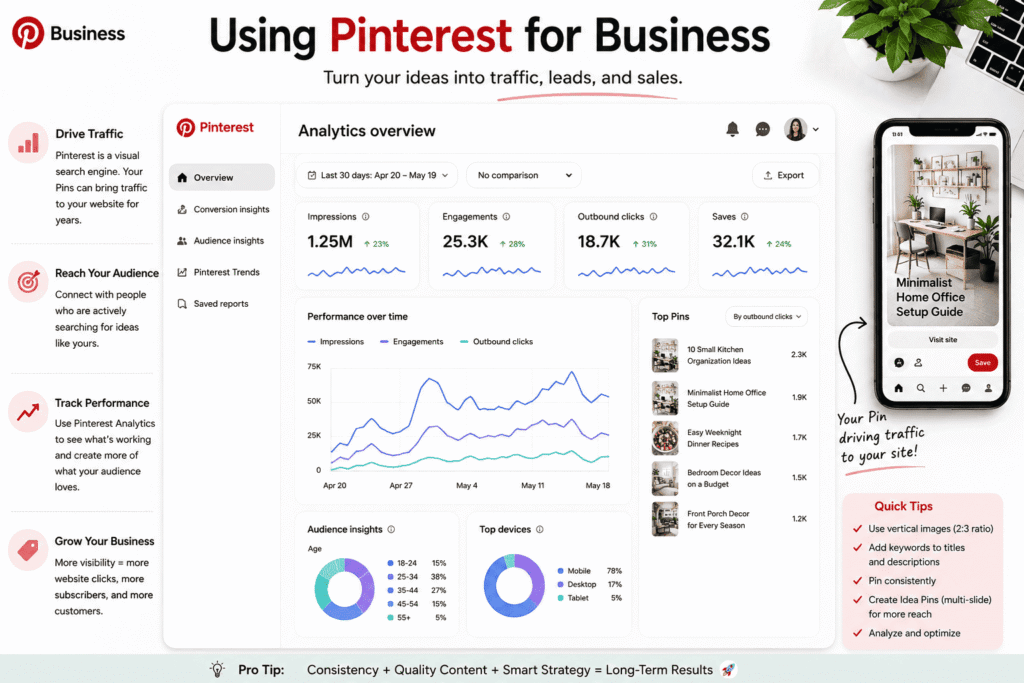
This is where Pinterest gets genuinely powerful. Unlike Instagram or TikTok, where content disappears from feeds within hours, a Pinterest Pin can drive traffic to your website for years. That’s not an exaggeration — some of my highest-traffic blog posts get consistent visitors from Pins that are 3 years old.
If you’re a blogger, content creator, Etsy seller, or run any kind of website:
- Set up a Business account — it’s free and unlocks Pinterest Analytics, which shows you which Pins are getting impressions, clicks, and saves.
- Claim your website in your Pinterest settings. This connects your domain to your Pins and gives you richer analytics about your own content.
- Create vertical Pins (2:3 ratio, ideally 1000×1500px). Pinterest’s layout heavily favors tall images — landscape images get buried. Design your Pins in Canva using their Pinterest templates.
- Add keywords to your Pin descriptions naturally. Think about what someone would type into Pinterest to find this content, and work those phrases in without it feeling robotic.
- Pin consistently, not in bursts. Pinning 20 things once a week is less effective than pinning 5 things every day or two. Consistency signals to the algorithm that you’re an active creator.
Real talk
I’ve seen small blogs get 30–40% of their total monthly traffic from Pinterest alone. It takes a few months to build momentum, but once it does, it runs almost on autopilot. No other platform has given me that kind of passive, compounding traffic.
A few things I genuinely didn’t expect
I didn’t expect Pinterest to become genuinely useful for learning things. I’ve found tutorials on watercolor techniques, home electrical basics, sourdough bread timing charts — all better explained through sequential images than through a 12-minute YouTube video.
I also didn’t expect how good it is as a shopping research tool. Searching “linen curtains living room” gives you styled room photos that happen to have shoppable products — it’s like window shopping with real context. Better, honestly, than most e-commerce sites.
And weirdly? It’s become one of the least stressful social platforms I use. There’s no argument thread under a Pin about curtains. Nobody’s having a bad day in your home decor board. It’s just ideas, and that’s kind of nice.